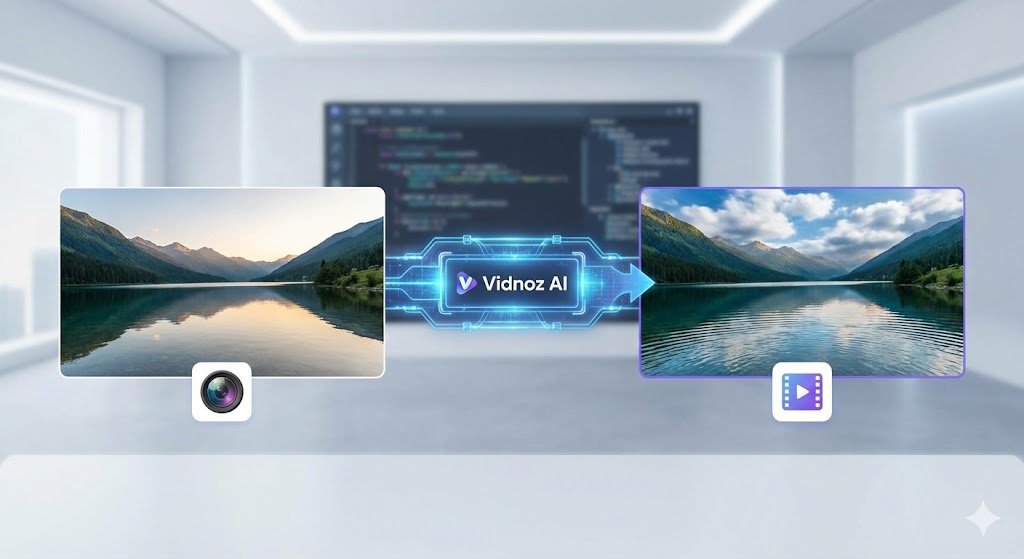


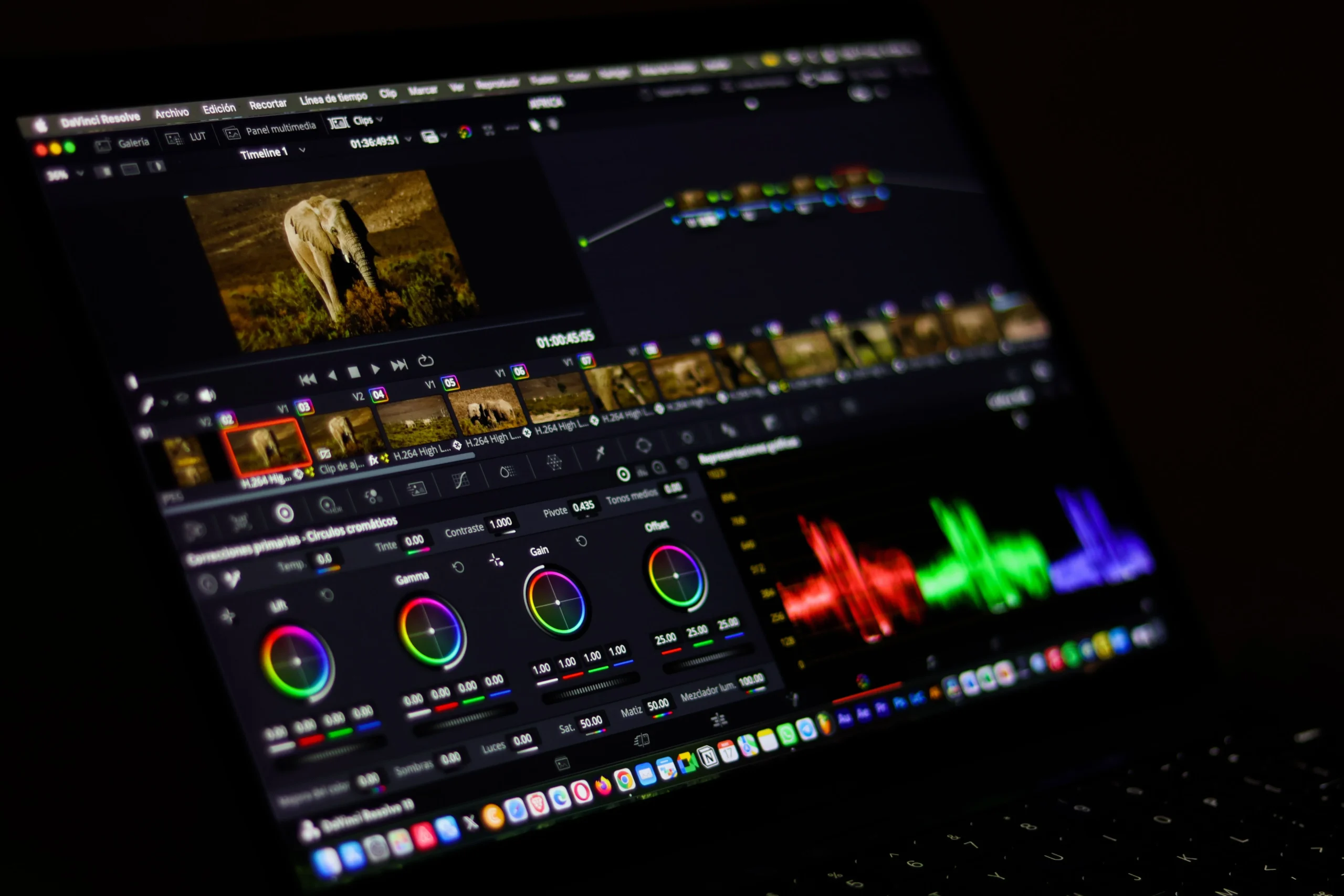




An AI video editor with templates helps beginners make polished videos by handling layout, text, and timing for them. Adobe Firefly’s video editor pairs text templates with a simple timeline and tools like image to video, which turns a still photo into a short clip you can drop straight into your edit.
Say you run a small bakery and want a 30-second video for social media: a few clips of fresh bread, a headline with this week’s special, and captions so people can follow along with the sound off. Traditional editing software can feel overwhelming for a project like that, with keyframes, effects panels, and dozens of menus. Beginner-friendly editors take a different approach. They give you ready-made text styles, automatic captions, and even ways to edit by changing words in a transcript instead of scrubbing through a timeline.
Firefly’s video editor is a browser-based workspace, currently in public beta on desktop, where you can combine your own footage with AI-generated clips, music, and audio. Adobe describes a layered timeline for cutting, trimming, and rearranging clips, plus text templates and editable text properties for titles and on-screen copy. You can generate new clips without leaving the editor, and image to video lets you animate photos, such as a product shot, with camera moves like zoom and pan. Other built-in options include AI text to speech in more than 20 languages and an AI music generator.
Which Online Video Editor Offers Templates and Auto Subtitles?
Several online video editor options combine templates and auto subtitles, which together cover a big share of what beginners need for social videos.
Within Adobe’s lineup, Adobe Express is built around templates. Coverage of its app describes thousands of video templates and editable, customizable captions generated in more than 100 languages. It’s a natural companion to Firefly, which focuses on generating and assembling clips.
Microsoft Clipchamp is another web-based option known for templates. Its autocaptions feature generates subtitles for free, creates an editable transcript, and lets you download captions as an SRT file. Clipchamp notes that it currently transcribes only one language per video.
Captions matter because many viewers watch with the sound off. Whatever tool you choose, always review auto subtitles for names, brand terms, and numbers.
Video Editing Made Simple: Edit Video by Editing Text in a Transcription
Video editing gets much easier when you can edit video by editing text. The software creates a transcription of your footage, and when you delete or move words in the transcript, the matching video changes too.
Firefly’s video editor includes text-based editing for interview and podcast cuts, alongside its timeline. Coverage of the public beta describes it as ideal for talking-head content, where rearranging sentences is faster than hunting through waveforms.
Descript built its whole approach around this idea. It transcribes your footage, then edits audio and video when you change the transcript. Its Filler Word Removal can cut words like “um” from both the video and the transcript, and captions come straight from the transcript.
Text-based editing works best for spoken content. For visual montages, a timeline is still the better tool.
Best Video Editing Platforms With Intuitive Editing Tools: Features That Need No Advanced Skills
The best video editing platforms with intuitive editing tools share a few features that need no advanced skills: templates, automatic captions, text-based editing, and AI help for missing footage.
| Platform | Best for | Key details |
| Adobe Firefly | Combining your footage with AI-generated clips | Browser-based editor in public beta; layered timeline; text-based editing; text templates; image to video; text to speech in 20+ languages; AI music |
| Adobe Express | Template-first social videos | Thousands of video templates; captions in 100+ languages |
| Descript | Interviews, podcasts, and talking-head videos | Edit by transcript; Filler Word Removal; captions from transcript; multitrack editing |
| Clipchamp | Quick browser edits | Templates; free autocaptions; SRT download; Windows app |
Many beginners use more than one. For example, they generate a missing B-roll shot with Firefly, then finish captions in their main editor.
What Makes Easy Video Editing Software for Beginners?
Easy video editing software for beginners removes technical decisions so you can focus on the story.
Templates that guide you: Pre-styled titles and layouts give you a professional starting point. Firefly’s text templates and Express’s video templates both serve this role.
Automatic captions: One-click subtitles save hours and make videos accessible.
Simple timelines: A clean, layered timeline is easier to learn than a pro editor with dozens of panels.
AI for gaps: If you’re missing a shot, AI can help. Firefly’s image to video can animate a photo into a short clip, and Adobe says generated clips download as MP4 files, typically about five seconds long depending on the model.
Clear exports: Look for presets sized for common social platforms so your video fits without extra steps.
FAQ
Do I need editing experience to use AI video tools?
No. Tools like Firefly, Adobe Express, Descript, and Clipchamp are designed for people without advanced editing skills. Start with a template or a simple timeline and add features as you go.
Is the Firefly image to video feature free?
Adobe says free accounts get free daily generations with the Firefly Video Model, and paid plans add higher-volume generation and more partner models.
Can I use Firefly-generated clips in business videos?
Adobe says videos generated from an image with Firefly models are commercially safe, as long as the uploaded image doesn’t violate copyright, trademark, privacy, publicity, or other rights.