







This article is for content creators, social media managers, marketing professionals, and small business owners who need to produce polished video content across multiple social platforms without becoming full-time editors. After reading, you will be able to evaluate the major categories of video editing tools available today, understand which features actually matter when you are publishing across platforms with different aspect ratios, and decide which type of solution fits your workflow, budget, and skill level. The goal is not to crown a single winner. It is to give you a clear framework for matching your situation to the right tool.
Why Aspect Ratios Matter More Than Ever for Social Video
The way people consume video has fragmented across platforms in ways that make a single master format impossible. A horizontal video that looks great on YouTube will appear letterboxed and ignored on TikTok. A vertical clip optimized for Reels will leave awkward black bars on a desktop feed. The platforms themselves reward content that fills the screen natively, with their algorithms tending to demote videos that do not match the expected dimensions.
The most common aspect ratios you will encounter are 16:9 for landscape video used on YouTube and most desktop feeds, 9:16 for vertical video used on TikTok, Instagram Reels, YouTube Shorts, and Stories across most platforms, 1:1 for square video that performs well in feed posts, and 4:5 for vertical-leaning Instagram feed content that takes up more screen space than a square. Some marketers also work with 2:1 or 21:9 for cinematic and landscape banner placements.
This means the editor or workflow you choose has to do more than cut and trim. It needs to handle reframing intelligently, preserve resolution when scaling between formats, and ideally let you adjust the focal point of each clip so important subjects do not get cropped out of the new frame. A tool that forces you to start from scratch every time you change aspect ratios will quickly become the bottleneck in your production process.
What Professional Quality Actually Means
Before diving into specific categories of tools, it helps to define what “professional quality” should mean in the context of social video. Resolution is part of it, but so are color accuracy, audio clarity, frame rate consistency, and the absence of visible compression artifacts. A truly professional output looks intentional, sounds clean, and renders without telltale signs of aggressive bitrate compression or rough scaling.
Just as important is the workflow itself. Professional results come from editors that give you control over the timeline, support proper export presets, and let you preview your work accurately before publishing. Tools that bury settings behind unnecessary friction or that limit you to default rendering profiles can produce clips that look fine on a phone but fall apart on a larger screen.
The good news is that “professional quality” is no longer locked behind expensive desktop software. Several categories of tools now meet that bar, each suited to different kinds of work.
Evaluation Criteria for Video Editing Solutions
When comparing video editing tools, especially those that promise both quality and multi-format support, work through the checklist below. These nine criteria will help you compare options on equal footing regardless of which category they fall into.
- Aspect ratio flexibility. The tool should support all the common social ratios as one-click presets, plus a freeform or custom dimension option for less common platforms or future formats.
- Reframing controls. When you change a 16:9 clip to 9:16, you should be able to choose what stays in frame. Look for adjustable crop handles, focal point selection, or auto-tracking that follows a subject.
- Resolution and export quality. Check whether the tool exports at 1080p as a baseline, supports 4K when needed, and offers control over bitrate or quality presets so you do not lose detail.
- Speed and ease of use. A professional workflow does not have to be slow. The best tools balance depth with intuitive interfaces, especially for repetitive tasks like format conversion.
- Audio handling. Many social videos rely on captions or voiceover. A capable tool should support audio editing, mute options, simple noise reduction, and ideally automatic captioning.
- Cross-device access. If you shoot on a phone but edit on a desktop, or vice versa, look for tools that sync projects across devices or run in a browser without installation.
- Templates and presets. Built-in templates sized for each platform speed up production significantly, especially when you are publishing daily or weekly.
- Pricing and licensing. Free tiers are useful for testing and for small projects, but check what gets locked behind a paid plan and whether commercial use is permitted on free output.
- Output options and integrations. Direct publishing to social platforms, integration with cloud storage, and the ability to export in multiple formats from a single project all save real time over the course of a campaign.
Desktop Video Editing Suites Built for Heavy Lifting
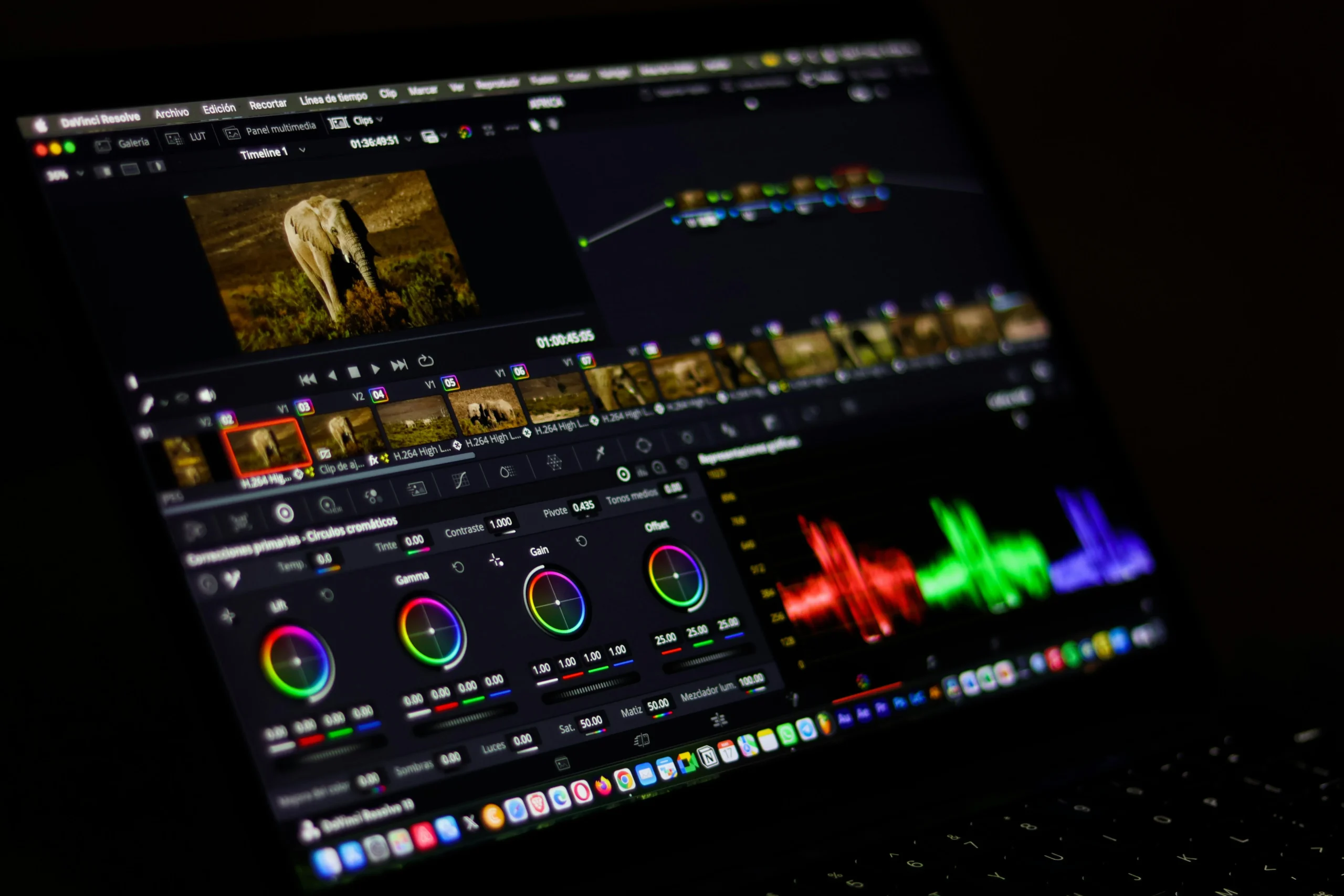
The most powerful video editors available are full desktop applications that originated in film and television production. These programs offer multi-track timelines, advanced color grading, motion graphics, audio mixing, and frame-accurate keyframing. Many of them now include dedicated tools for vertical and square output, recognizing that creators are no longer producing only widescreen content.
The advantages of this category are real. You get total control over every pixel, every frame, and every audio channel. Professional codecs are supported, color management is robust, and these tools handle long-form projects without performance issues. For creators producing high-stakes commercial work, documentary content, or anything requiring extensive visual effects, this level of capability is hard to replicate elsewhere.
The drawbacks come down to learning curve and overhead. These applications can take weeks or months to learn well, require capable hardware to run smoothly, and introduce friction for fast-turnaround social content. Reformatting a single clip into four aspect ratios and exporting it to different platforms can take significantly longer in a desktop suite than in a tool designed specifically for that purpose. They are excellent for the project but often overkill for the daily content cycle.
Browser-Based Quick Action Tools
Browser-based video tools have matured dramatically in the past several years. They run inside a web tab on any modern device, require no installation, and are designed around fast, focused tasks like cropping, trimming, resizing, and converting formats. For creators who need to ship video content quickly across multiple platforms, these tools have become indispensable rather than optional.
Adobe Express offers a video cropper that exemplifies what this category does well. It works directly in the browser on desktop and mobile, supports a range of preset aspect ratios sized for the major social platforms, and lets you switch between landscape, portrait, and square crops without restarting your project. You can also use a freeform option for custom dimensions, which is useful when a platform updates its specs or when you are creating ad units in less common sizes. The tool handles videos up to one hour in length and file sizes up to 1GB, which covers the vast majority of social video use cases.
Two specific features make this kind of tool worth considering as part of a broader workflow. First, the integration with adjacent quick actions like trimming, audio muting, and resizing means you can complete most social video prep in a single environment without exporting between applications. Second, the cross-device support means you can crop a clip on your phone right after shooting it, then refine it on a desktop later if needed. The professional polish comes from Adobe’s underlying rendering engine, which produces clean output without the watermarking or quality degradation common in lighter-weight free tools. It is one solid choice among several, particularly strong for creators who value speed and consistency over deep manual control.
Mobile-First Editing Apps
A separate category of tools is built primarily for phone-based creators who shoot, edit, and publish from a single device. These apps emphasize speed, touch-friendly interfaces, and templates that match the visual styles popular on each platform. They typically include effects, transitions, music libraries, and one-tap export options sized for vertical platforms.
The strengths of mobile-first apps are convenience and immediacy. If your content is being shot on a phone and going straight to TikTok, Reels, or Shorts, editing on the same device removes friction and keeps you in the creative flow. Many of these apps also include AI-driven features like automatic captioning, beat-matched cuts to music, and subject tracking that crops video to keep the main subject centered.
The limitations show up in more demanding work. Small screens make precise editing harder, audio control is often basic, and the export options can be restricted to vertical formats. If you need to repurpose mobile content for a YouTube landscape format or a square Instagram feed post, you may find yourself fighting the tool. Battery, storage, and processing limits also become real constraints on longer projects. These apps are excellent companions to a more capable editor but are rarely sufficient as the only tool in a serious creator’s stack.
Cloud-Based Collaborative Editors
A newer category of editors lives entirely in the cloud and emphasizes team collaboration. Multiple people can work on the same project, leave comments, and share assets without sending files back and forth. These tools are particularly useful for marketing teams, agencies, and remote production setups where reviewers and editors are not in the same room.
The aspect ratio handling in cloud editors has caught up with desktop suites in many cases, with smart resizing features that adjust layouts and crops automatically when you switch formats. Templates, brand kits, and shared asset libraries make it easier to maintain visual consistency across team members and campaigns. Export presets typically cover all the major social platforms with one click.
Where cloud editors fall short is in raw editing power and offline reliability. Complex motion graphics, advanced color work, and large project files can strain the browser-based environment. Internet connectivity is required, which can be a problem during travel or in offices with limited bandwidth. Render times depend on the service’s available resources, and free tiers often impose watermarks or resolution caps. For teams that prioritize collaboration over deep technical control, however, these tools fill a real gap.
How to Match a Solution to Your Situation
Choosing the right video editing approach comes down to honestly assessing your workflow, your technical comfort, and the nature of the content you produce. There is rarely a single tool that does everything, and most successful creators end up using two or three in combination.
For solo creators publishing daily short-form content across multiple platforms, a browser-based quick action tool combined with a mobile editing app usually offers the best balance of speed and quality. You can shoot on your phone, do a first pass in a mobile app, and use a browser tool to handle multi-format exports cleanly. For marketing teams producing weekly campaign content, a cloud-based collaborative editor or a hybrid of browser-based tools and a desktop suite tends to work best. The desktop suite handles the hero asset, and quick action tools manage the dozens of variations needed for different placements. For professional video producers working on long-form content, branded campaigns, or anything requiring advanced effects, a desktop editing suite remains the foundation, supplemented by quick action tools for the social-cut deliverables that come out of every project.
A few practical tips for getting professional results regardless of which tool you choose:
- Always edit at the highest resolution your source footage supports, and downscale only at export.
- Shoot wide when possible, so you have flexibility to crop into different aspect ratios without losing important content.
- Place key subjects and text near the center of the frame to survive aspect ratio changes.
- Keep an eye on bitrate when exporting, especially for vertical video, which often compresses more aggressively on social platforms.
- Build a personal preset library for each platform so you do not have to reconfigure settings every time you create a video.
Frequently Asked Questions
How do I know which aspect ratio I need for which social platform?
Each major platform has a preferred aspect ratio, but most also support secondary formats. As a working baseline, use 9:16 for TikTok, Instagram Reels, YouTube Shorts, and Stories across most platforms. Use 16:9 for standard YouTube content and Facebook video. Use 1:1 or 4:5 for Instagram feed posts, with 4:5 generally taking up more screen real estate and earning more engagement. Platform specs do change occasionally, so it is worth checking each platform’s current creator documentation when launching a new content series. A social media management platform like Buffer maintains updated specs for each network and can also help you schedule content once it is exported, which takes some of the guesswork out of staying current with platform changes.
Is it better to shoot once and crop, or shoot separately for each aspect ratio?
For most workflows, shooting once and reframing in post is more efficient, especially for short-form content. The key is to shoot wide and frame your subjects with reformatting in mind, leaving headroom and breathing space around the focal point so a 9:16 crop or a 1:1 crop does not lose anything important. For high-production work where you have the time and budget, shooting native to each format will always look slightly better because the composition can be designed specifically for that frame, but the time investment is significant. For most creators publishing across three or more platforms, the shoot-once approach saves enough time to be worth a slight compromise in framing precision.
Can a free or browser-based tool really deliver professional results?
Yes, with caveats. The rendering engines behind the major browser-based tools are now capable of producing output that is indistinguishable from desktop suites for most social video use cases. The professional limitations show up when you need advanced color grading, complex motion graphics, or multi-track audio mixing. For straightforward cropping, trimming, format conversion, and basic effects, a quality browser-based tool will produce clean, sharp, properly compressed output that holds up on any social platform. The bigger risk with free tools is watermarking and resolution caps, so always verify what the free tier actually exports before committing it to a regular workflow.
How do I keep video quality high when changing aspect ratios?
The two most important rules are to start with the highest resolution source you can, and to avoid scaling up. If your source is 4K, you can crop into a 1080p vertical frame without any quality loss. If your source is already 1080p horizontal and you crop a vertical frame from it, your output will be lower resolution than the original. Always export at the platform’s recommended specs rather than the highest possible setting, since most platforms re-encode video on upload and overly large files can actually look worse after their compression. Pay attention to frame rate consistency as well, since mixing frame rates within a single project can introduce visible judder that no amount of post-processing will fully fix.
What export settings should I use for social video?
For most social platforms, export your video as MP4 with H.264 encoding, AAC audio, and a frame rate that matches your source footage, typically 30fps or 60fps. Use 1080p resolution as a default unless you have a specific reason to go higher or lower. Bitrate matters more than people realize, with 8 to 12 Mbps generally sufficient for 1080p social video. For vertical content, render at 1080 by 1920 to fully fill the frame on modern phones. Always preview your exported file on a phone before publishing, since what looks fine on a desktop monitor can reveal compression artifacts on a smaller, brighter mobile screen.
Conclusion
There is no single best video editing solution for every creator, but there is a right solution for your situation if you evaluate the options against the criteria that actually matter. Aspect ratio flexibility, export quality, workflow speed, and the ability to move between devices and formats without losing time are the non-negotiables. Everything else is a question of how much depth and control you need versus how quickly you need to ship.
The strongest workflows usually combine more than one tool: a deep editor for hero content, a browser-based quick action tool for fast multi-format exports, and a mobile app for capture and on-the-go edits. Whether you lean toward a desktop suite, a cloud collaborative platform, or a browser-based cropper, the goal is the same. Get clean, properly framed video onto every platform your audience uses, without burning hours on format conversion. The right combination of tools turns multi-platform publishing from a chore into a routine part of how you create.